HOKIO / INTEGRATION GUIDES
Connect local n8n webhooks to the internet with Hokio
Run n8n locally with Docker Compose, configure its public webhook URL, and test a workflow while keeping the editor local.
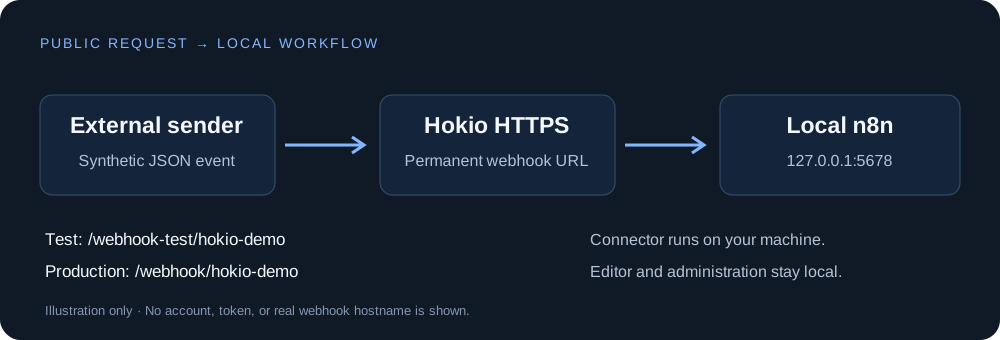
1. Run n8n on your computer
You need Docker Engine or Docker Desktop with Docker Compose. Use a new folder for this demo. If you already have n8n, keep its existing data volume, configuration, and credentials; adapt its configuration instead of starting a replacement instance.
Save this as compose.yaml. It publishes n8n only on the host's loopback interface and keeps its data in a named volume:
services:
  n8n:
    image: docker.n8n.io/n8nio/n8n:stable
    ports:
      - "127.0.0.1:5678:5678"
    volumes:
      - hokio_n8n_demo:/home/node/.n8n
    environment:
      N8N_ENFORCE_SETTINGS_FILE_PERMISSIONS: "true"
      GENERIC_TIMEZONE: "Etc/UTC"
      TZ: "Etc/UTC"
volumes:
  hokio_n8n_demo:
docker compose up -dOpen http://localhost:5678, create the local n8n owner account, and confirm the editor works. The stable tag changes over time; pin a reviewed version for repeatable deployments. Do not delete the named volume when recreating the container.
2. Connect port 5678 to Hokio
Run the Hokio connector on the Docker host, outside the n8n container. In the Windows app select port 5678. On Linux, after installing Hokio through Quick Start, redeem your one-time code:
hokio-agent login --panel-url https://hokio.dev --port 5678 --connectFor an already registered connector, change its application port with hokio-agent config --port 5678, then reconnect with hokio-agent connect. This changes the target for that connector, so do it only when it is intended for n8n.
Copy the assigned HTTPS origin. Add the following entry under environment in your Compose file, replacing the placeholder with your actual hostname:
N8N_WEBHOOK_URL: "https://YOUR_ASSIGNED_HOKIO_HOST/"Version compatibility: current n8n uses N8N_WEBHOOK_URL. For older releases that do not support it, use WEBHOOK_URL instead. The older name is deprecated from n8n 2.35.0. Use the variable supported by your installed release, not both.
docker compose up -dRecreate through Compose to apply the changed environment; a plain container restart does not apply edited Compose values. Keep using the local editor URL. Setting a webhook base URL does not make the editor private by itself.
Protect the editor: before sharing the public URL, configure the Hokio endpoint to allow only POST and the exact intended webhook paths, such as /webhook-test/hokio-demo and /webhook/hokio-demo. Block editor, REST, and credential-management paths. Hokio forwards to the whole local port unless endpoint rules restrict it. Remove the test path after development. Proxy trust settings depend on your actual forwarding chain; do not blindly copy N8N_PROXY_HOPS=1 or trust client-supplied forwarding headers.
3. Create a webhook workflow
Optional shortcut: download the tested workflow JSON and import it into a new workflow using the editor's import action. It contains no credentials and is not published on import. Review the POST method and hokio-demo path before testing.
- Create a workflow and add a Webhook trigger.
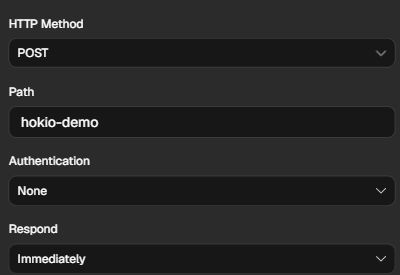
- Set HTTP Method to
POSTand Path tohokio-demo. - For a harmless first test, choose the immediate response option (often labelled Immediately). This acknowledges the event without performing business actions.
- Select Listen for test event. Copy the test path shown by your installed n8n version.
Save this synthetic event as event.json:
{"event":"task.completed","job_id":"demo-001","status":"completed"}Test localhost first, then repeat through Hokio. In Windows PowerShell use curl.exe in place of curl.
curl -i -X POST http://127.0.0.1:5678/webhook-test/hokio-demo -H "Content-Type: application/json" --data-binary @event.json
curl -i -X POST https://YOUR_ASSIGNED_HOKIO_HOST/webhook-test/hokio-demo -H "Content-Type: application/json" --data-binary @event.json
The test listener may expire or stop after an event. Select Listen again before the second request if needed. Expect an HTTP success response and inspect the captured event in the Webhook node; the exact response body depends on your n8n version and response settings.
4. Publish and use the production URL
Save and publish the workflow (older versions use an Active toggle). In n8n 2.45.7, select Publish, enter a version name in the confirmation dialog, and confirm Publish. Wait until the editor shows Published. Use the production path shown by n8n:
https://YOUR_ASSIGNED_HOKIO_HOST/webhook/hokio-demoSend the same sample event without enabling a test listener:
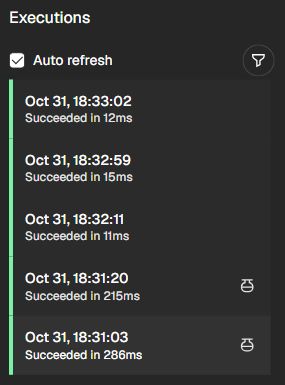
curl -i -X POST https://YOUR_ASSIGNED_HOKIO_HOST/webhook/hokio-demo -H "Content-Type: application/json" --data-binary @event.jsonWith the immediate response setting in n8n 2.45.7, the demo returns HTTP 200 and {"message":"Workflow was started"}. Open Executions and confirm Succeeded; do not treat the HTTP acknowledgement alone as proof of completed processing.
Production events appear in Executions, rather than the test listener. Configure Header Auth or another supported authentication method on the Webhook node before sending real events. Keep credentials in the sender's secure settings. If the sender uses signatures, validate its signed raw payload before acting. An immediate 200 response acknowledges receipt; it does not prove every later workflow step completed.
Troubleshooting
Verified setup: n8n 2.45.7 in Docker on a local Ubuntu/WSL test machine, 31 October 2026. Local and externally sent test requests returned HTTP 200. Published production requests succeeded before and after reconnecting the Hokio connector, with successful executions visible in n8n. The test used a separately provisioned administrator connector; the one-time-code enrollment flow was not part of this test.
- 404 or webhook not registered
- For a test URL, enable the test listener. For production, publish the workflow and use the production URL. Verify method and path.
- Editor still shows localhost in the webhook URL
- Check the environment variable supported by your n8n version, recreate the container, and reopen the node. Keep the trailing slash on the base origin.
- Port 5678 is occupied
- Map an available host port, for example
127.0.0.1:5679:5678, and select host port 5679 in Hokio. n8n's container port stays 5678. - HTTPS returns 525 before n8n receives a request
- This is a TLS handshake problem between the edge proxy and the origin. Ask your Hokio administrator to check the webhook gateway's HTTPS listener and certificate configuration. Do not disable certificate verification or switch to an insecure TLS mode.
- Public request denied
- Check Hokio's exact paths, methods, source IP restrictions, and limits. Do not expose the entire editor to fix a webhook rule.
Official references: n8n Docker installation, webhook base URL configuration, and Webhook node.